QR code review game: a scavenger hunt that checks the answers
This is a review game for the lesson before a unit test or end-of-term exams. Students move around the room instead of sitting with a worksheet, and you do not have to mark anything during the game, because each answer is checked on the phone.
The lesson plan
- Students: ages 11 to 18, 25 to 30 of them in teams of three or four.
- Time: one lesson. Five minutes to start, 25 minutes to play, ten to fifteen minutes to go through the answers.
- Objective: students practise the key facts and ideas of the unit, and you see which questions the class still gets wrong.
- Materials: eight printed QR codes, tape, and one phone or tablet per team. Up to 5 phones can play each hunt free every month. If more play, buy a phone pack.
- The day before: play the whole game once on your own phone.
1. Pick eight review questions
Take them from what the test will cover, not from what was fun to teach. Mix questions that ask students to remember a word or a fact with two or three that ask them to explain an idea. Write your answer next to each question.
2. Choose a quiz or a task for each question
The answer you expect decides the step type.
A quiz takes a short typed answer or a multiple choice. A typed answer is compared with yours. Capital letters, extra spaces and a “the”, “a” or “an” at the start are ignored. Numbers, and answers under seven characters, must match exactly, and a longer answer can have a small typo. You can add other spellings or words that also count, such as “mitochondrion” next to “mitochondria”.
A task asks the team to write a sentence or two. AI checks it against what you say a good answer must contain, so you can accept many correct wordings.
| The question asks for | Use |
|---|---|
| a key word or a name | quiz, typed answer |
| a number | quiz, typed answer, which must be exact |
| a choice between ideas students mix up | quiz, multiple choice |
| a word students cannot spell yet | quiz, multiple choice |
| an explanation in their own words | task |
A wrong answer never locks a team out. They try again. After five wrong typed answers a team can reveal the answer and carry on, so nobody is stuck at one question for the whole lesson.
3. Put a printed code in front of each question
In the builder, add a mission step, set it to QR code, and drag it in front of a question. Do this for each question. The builder makes the code, and its download button gives you a printable card. A team has to scan the code to open the question, so the question only appears once they are standing at the right spot.
A code and its question are two steps, so eight questions make a 16-step game. There is no step limit, so build the whole route.
Tape the codes at eye height, a few metres apart: by the door, on a window, on the noticeboard, on a bookshelf, in the corridor outside if the classes nearby do not mind.
4. Start the teams at different codes
If every team starts at the first code, eight teams stand at one window. In the Player routes panel, choose Multiple start points and turn on each code step as a starting point. This is free. Each phone that starts the game gets the next starting point in turn, so every team visits every code in the same order, starting in a different place. That is why each team plays on one phone. Release the hunt again after you change the starting points.
The same idea for larger groups is in how to run multiple teams without crowding the same stop.
5. Run it
- Play the game once on your own phone the day before with a test run. It is free, the link lasts an hour, and nothing you do appears in the results.
- If you share the link early, set an opening time on it so it only works from the start of the lesson. This is free.
- In class, show the hunt’s QR code or link on the board. Students play in the browser, with nothing to install and no student account.
- Keep the spare prints in your pocket.
6. Go through the answers together
Leave the last ten minutes for this, because this is where students hear why an answer is right. Put the eight questions on the board and ask a different team to answer each one and say why.
On every hunt you see which teams finished, how long each took, and how many steps each completed. Every hunt also has a leaderboard. With the default scoring every team that finishes gets full points, so it is ordered by time. If you want wrong answers to cost points, switch the hunt to competitive scoring. Which question took the most tries and what each team actually typed are free to see too, and that is the quickest way to know what to teach again.
When a code will not scan
- Move the phone back until the whole code fits on the screen, and hold it still for a second.
- Laminated codes reflect the classroom lights. Tilt the phone, or print on plain paper.
- The browser asks for the camera the first time. If a student tapped no, they have to allow the camera in the browser settings. Some school tablets block the camera, so try one in your test run.
- Replace a torn or creased code with a spare print. Do not press the regenerate button next to the code in the builder on the day: it stops every printed copy of that code working.
- If a team scans the wrong code three times, a help button appears where they can say what went wrong and go on to the next step.
More ways to use QR codes inside a school are in how to make a QR code scavenger hunt for your classroom, and the classroom scavenger hunt page covers the rest of what teachers use HedgeHunt for.
The prompt we used
The prompt
A review game for a class of 13 and 14 year olds before their science test on cells, played in teams of three or four around the classroom and the corridor outside. Eight review questions, one per step: quiz questions with a short typed answer or multiple choice for facts and key words, and two tasks where the team explains an idea in their own words. A friendly tone, about 25 minutes in total.
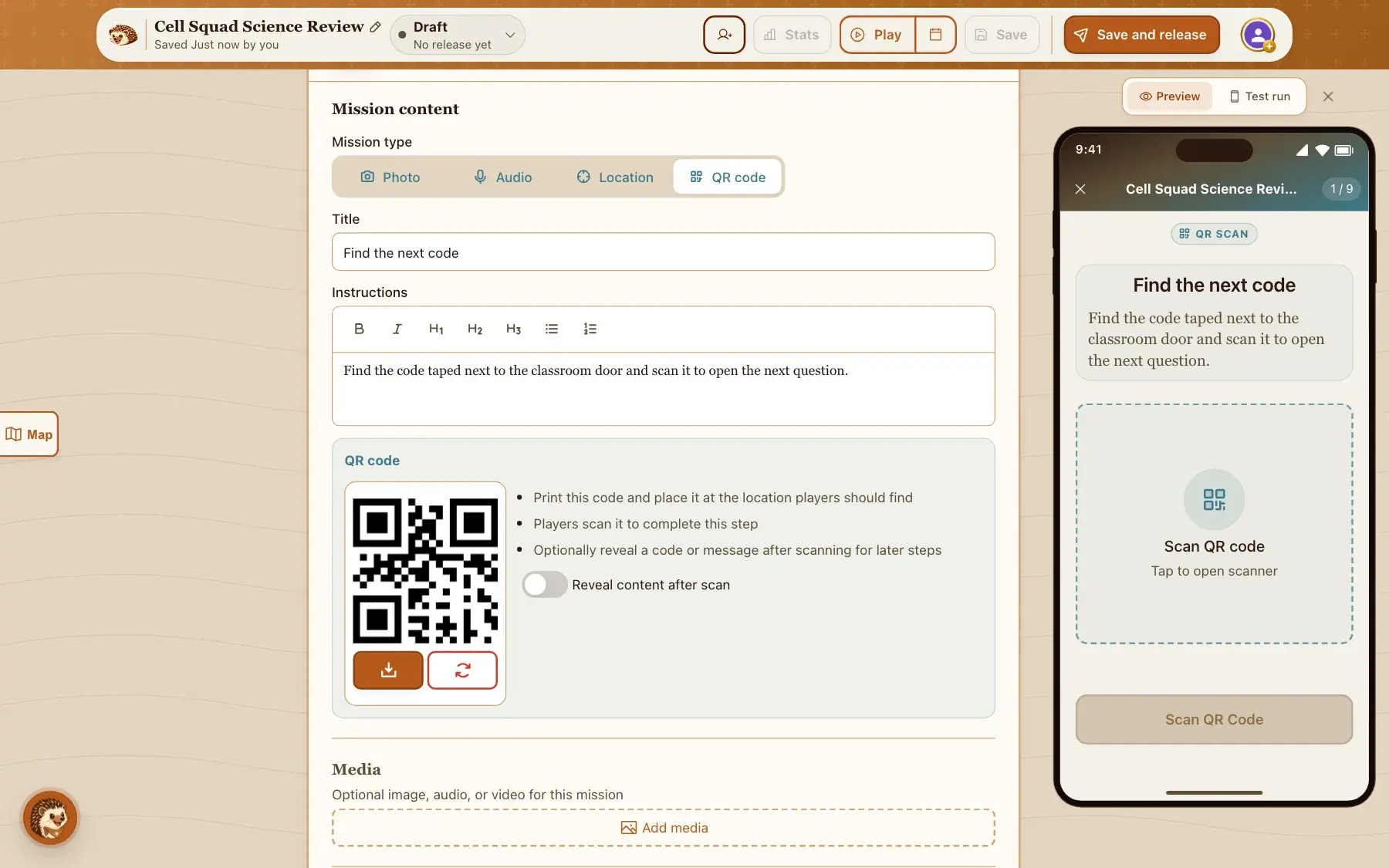
What came back
We ran this prompt twice through the generator, with the place set to Somewhere private. Both runs gave eight questions on cells that suit the age group: six quiz questions, three typed and three multiple choice, and two tasks. Neither made a QR stop, because the generator never does.
What you will want to change
The button below opens the builder with this prompt filled in, or you can paste it into the AI scavenger hunt generator. Set the place to Somewhere private, so the generator does not send teams to places on a map. Change the age and the topic, then replace the questions with your own review questions and your own answers. Then add a QR code mission in front of each question, turn on the code steps as starting points, and release the hunt.
Draft this hunt